


 FREE Delivery over £35
 Unbeatable Prices
Use the information available here to prevent automatic HP Printer Firmware Updates.
Disable Auto Updates Via:
Can I stop my HP printer performing automatic firmware updates?
Absolutely! You can stop your printer from automatically performing an HP printer firmware update. It’s possible to simply turn the automatic updates off and this can be done via the printer, via your computer or via the HP app.
We’ll guide you through the steps you need to take below but if you have any questions at all about HP firmware updates then please contact our customer service team.
Call us on: 0203 001 0234 (calls are charged at normal UK national rates).
Customer Service representatives are available Monday – Friday 9am – 6pm (excluding bank holidays).
Or email customerservice@cartridgepeople.com
Disabling automatic HP firmware updates via the printer's control panel
Please follow the instructions below:
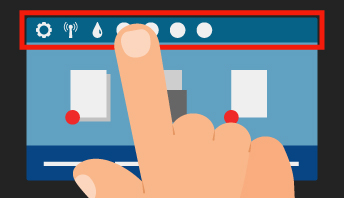
1. Click on the dark blue bar at the top (the one with a setup sign, Wi-Fi sign and an ink drop).
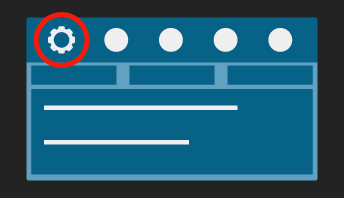
2. A new menu appears. Click on Setup at the top left of the menu.
3. The configuration menu will open. Scroll down to Printer Maintenance.
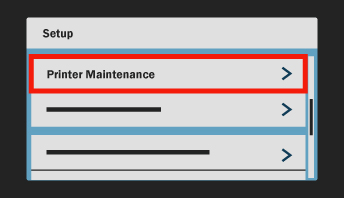
4. Click on Printer Maintenance and then on Update the Printer.
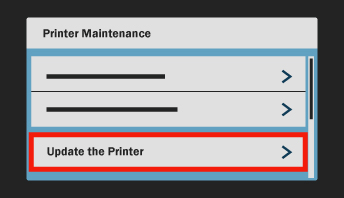
5. Choose Printer Update options and then Do Not Check.
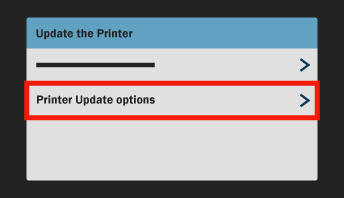
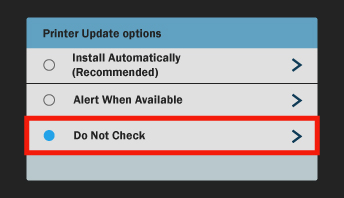
6. Press NO when asked if you want to turn on Printer Updates.
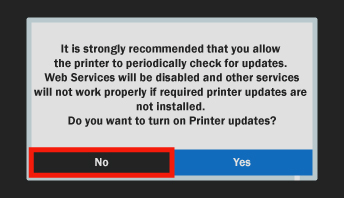
Going forward HP will not be able to alter your firmware and you can continue using Cartridge People Own Brand cartridges without any issues.
Alternatively…
1. Select Config from the menu.
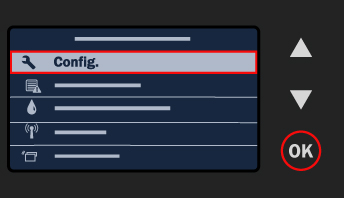
2. The configuration menu will open. Scroll down to Extra and press OK.
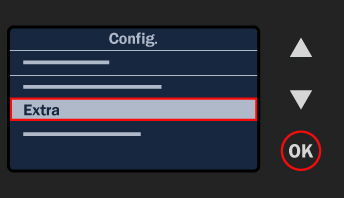
3. On the following screen, scroll down to Update the printer and press OK.
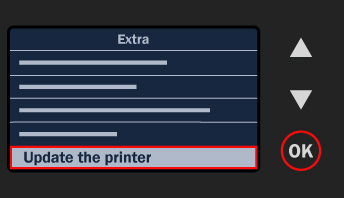
4. Select Update automatically and press OK.
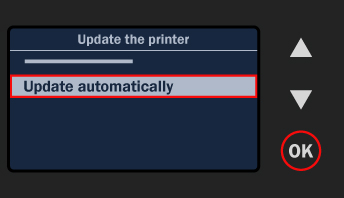
5. Scroll down to off and press OK.
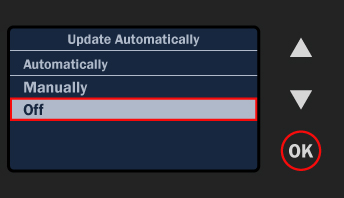
6. You’ll see the following screen.
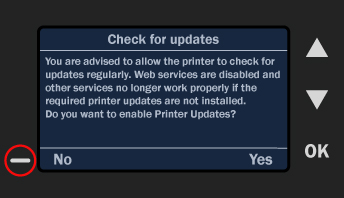
7. Press NO.
From then on, HP will not be able to alter your firmware and you can continue using our Own Brand products without any issues.
Disabling automatic HP firmware updates using the control panel on your PC
Windows 11
1. Open the HP app and click on the HP update option
2. Click “Printer Update”
3. Click “Auto Update”
4. Select “Off” to disable automatic updates.
For all other operating systems:
1. Open HP update option.
– Windows 10: Click Start, click All apps, click HP and click HP Update.
– Windows 8: Choose Windows + Q on your keyboard, type HP Update in the search bar and click on HP Update in the results list.
– Windows 7/Vista: Click Start, click All programmes, click HP and click HP Update.
– Windows XP: Click Start, click All programmes, click on the HP map and click HP Software Update.
– OS X: Mac uses its own software! No updates will take place via OS X.
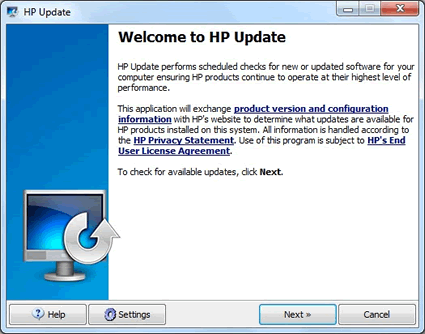
2. Click on the Settings button. The HP Update Settings popup will appear.
3. Select Never and click on the OK button.
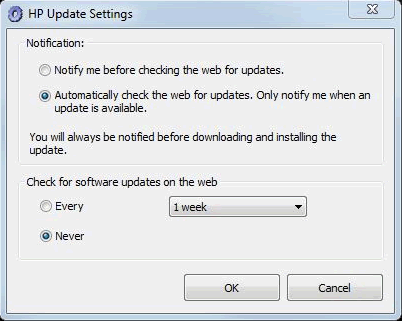
Close the HP Update program by clicking the cross.
Disabling automatic HP firmware updates via the HP Smart app
(Available on Android and Apple smartphones and tablets)
1. Click the printer image on the home screen.
2. Select Advanced Settings.
3. Click Tools.
4. Select Printer Updates and click Firmware Updates.
5. Select “Do not check for updates” and click Apply.
6. A popup will appear with the following question: “Do you want to turn on printer updates?”. Click No.