


 FREE Delivery over £35
 Unbeatable Prices
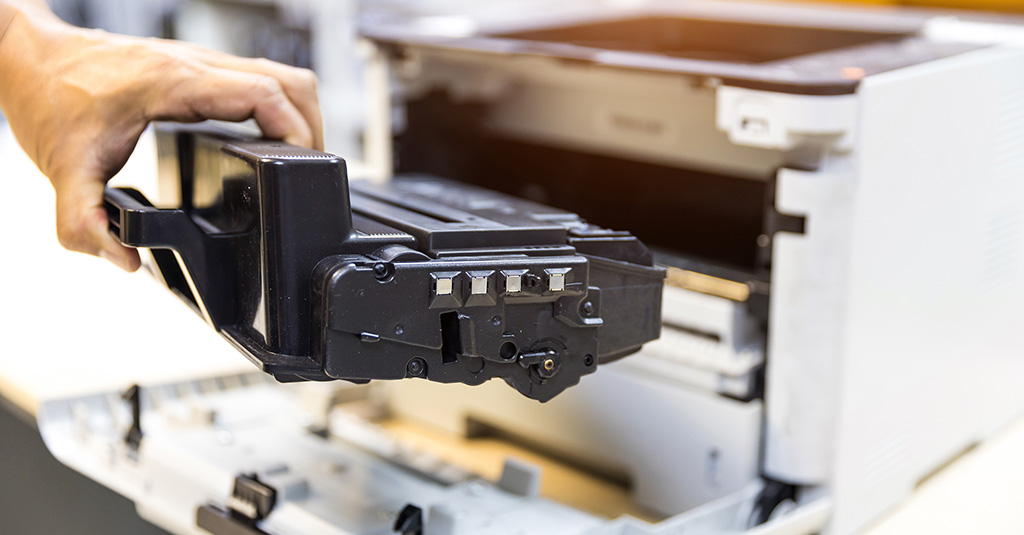
Printer Drum: When to Replace It and How to Know It’s Worn Out
The printer drum should be replaced when there’s a noticeable drop in print quality, you get a printer warning or the drum reaches its page yield.
A drum unit is often called an imaging unit, but the exact part can vary by printer brand and model. It’s also important to note that drums can either be separate from or part of the toner cartridge.
- What is a Printer Drum?
- What Does ‘Replace Drum’ Mean?
- Signs Your Printer Drum Needs Replacing
- How Long Does a Printer Drum Last?
- Should You Clean or Replace the Printer Drum?
- Can You Keep Printing After a Replace Drum Warning?
- How to Replace a Printer Drum
- How to Reset the Drum Counter
- Drum Unit, Imaging Unit and Developer Unit: Are They the Same?
- Buying Replacement Drums
- Printer Drum FAQs
What is a Printer Drum?
Drum units are electrically charged rollers on which the toner powder adheres to. Heat is then used to transfer the toner powder onto the page. Different brands may use different terms to refer to this component.
For more information about how laser printers work, check out our helpful guide.
Printer Drum vs Toner Cartridge: What’s the Difference?
It’s important to differentiate between a printer drum and a toner cartridge. The toner is the powder used to print and the drum/imaging unit then transfers the toner to the paper. While some printers combine the two parts, others keep them separate.
What Does ‘Replace Drum’ Mean?
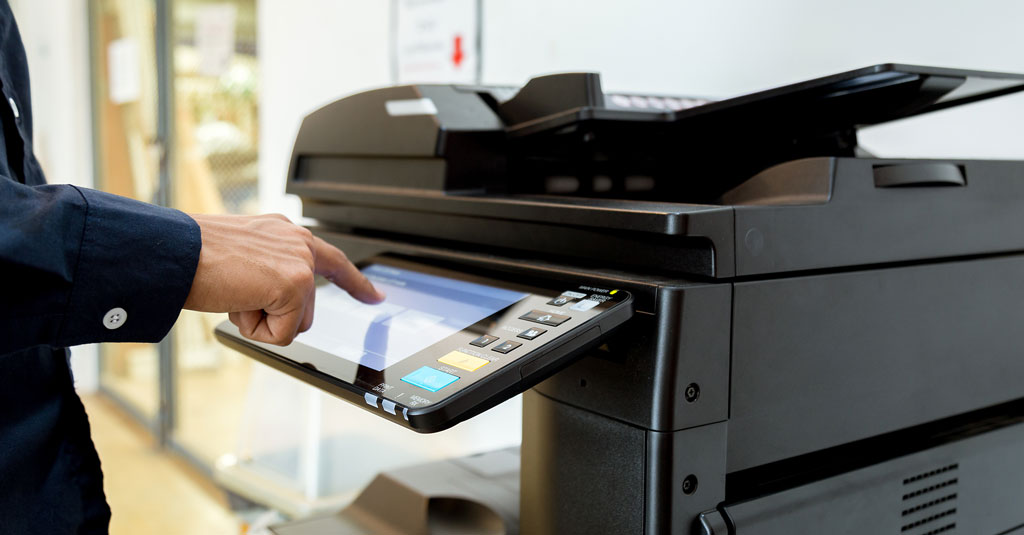
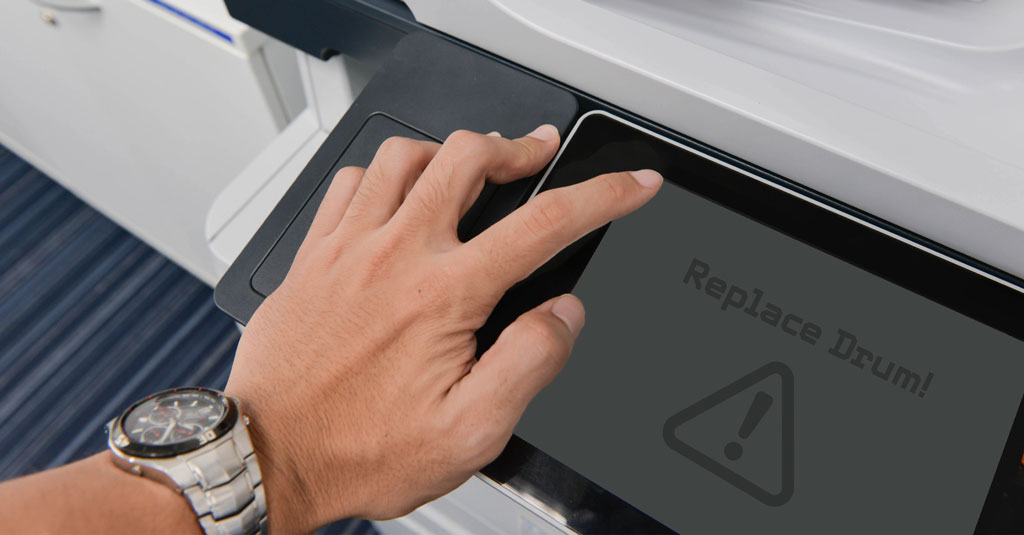
When your printer tells you to replace the drum, this typically means that either the drum counter or the actual drum life has reached its limit. This warning can be based on page count or drum condition. A word of warning, however, you should only reset the drum counter after installing a new drum unit.
Signs Your Printer Drum Needs Replacing
Here are some telltale signs you need to replace the printer drum:
- Printer Message: You may see something like ‘Replace Drum’ or ‘Drum end soon’.
- Print Issues: Issues with print quality such as repeated smudges, vertical streaks or lines, spots, a grey background, faded or patchy areas can be indicative of a need for a new drum unit. If the defects repeat in the same place, such as regular marks down the page, this likely points to an issue with the drum and not the toner.
- Changing the Toner Doesn’t Fix the Problem: You still get poor-quality prints after replacing your toner.
- You’re Near or Past the Drum’s Rated Page Yield: Printer drums are rated for a certain number of pages. Once you’re near to or past that number, (especially if you notice a decline in print quality), it might be time to replace the printer drum unit.

How Long Does a Printer Drum Last?
The majority of laser printer drums last for tens of thousands of pages (usually somewhere between 10,000 – 50,000 pages). This is only an estimate, however, the exact yield will depend on the printer model, drum type, print coverage, paper quality and manufacturer rating.
Here’s a useful estimate:
- Small Home/Office Laser Printers: 10,000 – 20,000 pages
- Business/Workgroup Printers: 20,000 – 50,000 pages
- High-Volume Office Printers/Copiers: 50,000+ pages
Check your printer manual or the replacement drum part number for an official rated yield.
Should You Clean or Replace the Printer Drum?
Clean the printer drum if there’s loose toner, dust or minor marks. Replace it if the defects repeat, the surface is scratched or if print quality doesn’t improve. Make sure you don’t touch the drum surface, however.
A Note on Corona Wires
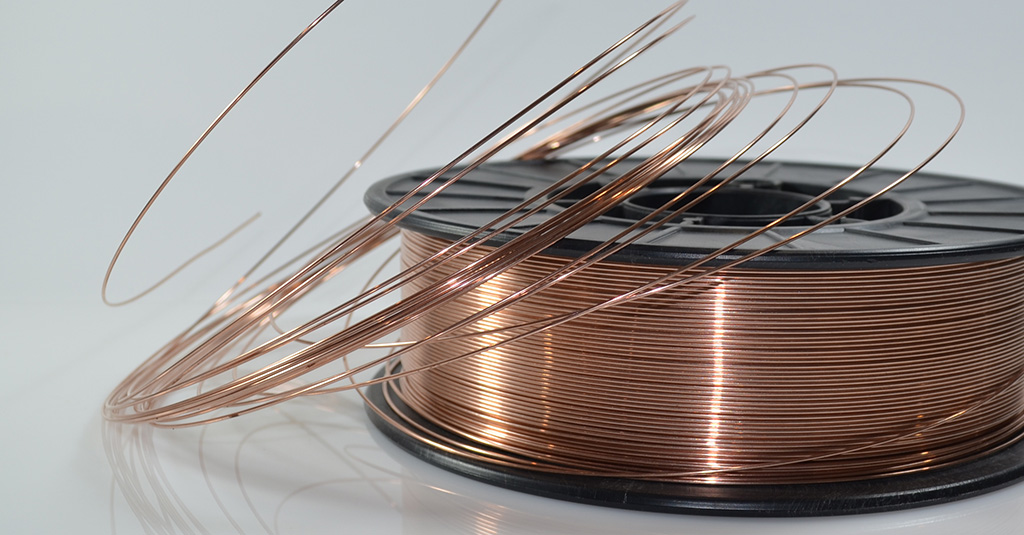
Should your printer ask you to clean the corona wire or slide the green tab on your drum unit, watch the below video for details on how to do this:
Doing so is especially useful if you see white lines on your printout or your printer is producing blank pages. It can also get rid of other print quality issues.
Can You Keep Printing After a Replace Drum Warning?
Typically you can continue to print for a short time after getting a warning to replace the printer drum. Your print quality might decline however and some printers will eventually stop printing until the printer drum is reset or replaced. Not changing the drum can damage the printer, so it isn’t recommended to leave it too long.
How to Replace a Printer Drum
- Turn off the printer: Unplug and leave to cool before opening.
- Open the printer cover: Use the front/top access panel (where this is depends on your printer model).
- Remove the toner cartridge: You’ll likely be able to find this inside or on top of the drum unit.
- Remove the old drum unit: Use the handle or release tabs.
- Separate toner from drum unit (if necessary): Some printers use separate toner and drum parts, if this is the case move the toner cartridge into the new drum unit.
- Unpack the new drum: While avoiding touching the shiny drum roller, remove all protective covers or seals.
- Install the new drum unit: Slide firmly into place until it clicks or locks in.
- Reinstall the toner cartridge: Ensure it is seated properly.
- Close printer cover: Power the printer back on.
- Reset the drum counter: Use printer menu or button sequence from the manual so the printer tracks the new drum properly.
- Print a test page: Ensure streaks, spots and/or drum warnings are gone.
How to Reset the Drum Counter
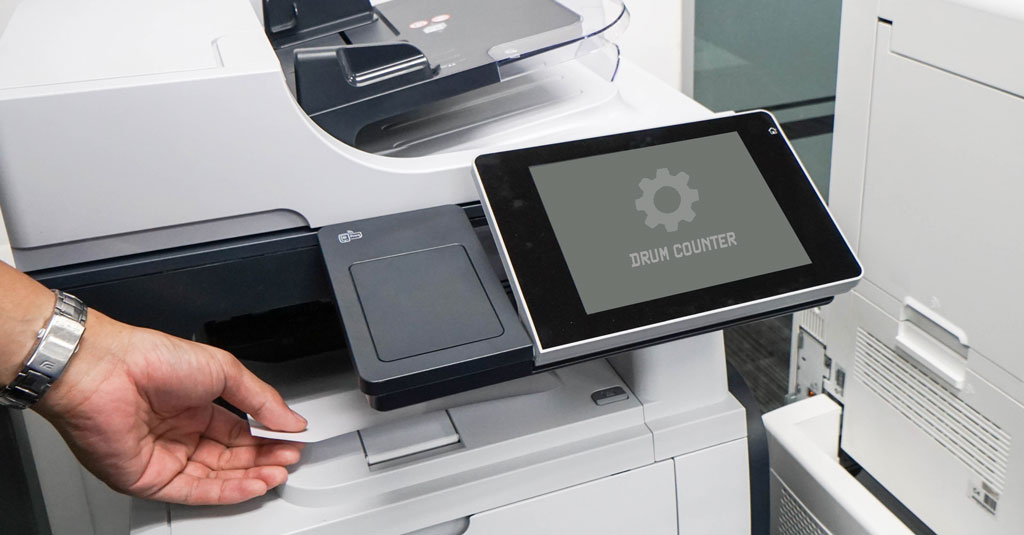
You should only reset the drum counter after you’ve installed a new drum unit.
- Open the printer menu/settings.
- Look for options like Drum, Supplies, Reset Menu or Machine Info.
- Choose Drum Reset or Reset Drum Counter.
- Confirm the reset.
- Print a test page to ensure the warning has gone away.
For exact instructions, consult your printer manual as steps may vary across printer brands and models.
Why Does the Drum Counter Reset Matter?
Resetting the drum unit tells the printer that a new drum unit has been installed. This should get rid of any ‘replace drum’ or ‘drum end soon’ warnings. Doing so also helps the printer to track the new drum’s usage properly. This should also prevent premature or inaccurate replacement alerts. Be careful though, as resetting the drum counter without actually replacing the drum can hide wear and result in poor-quality prints.
Drum Unit, Imaging Unit and Developer Unit: Are They the Same?
Drum Unit: Transfers toner from cartridge to paper.
Imaging Unit: Another name for a drum unit. On certain printers however, it can also include additional image-transfer components.
Developer Unit: Assists in moving and applying toner to the drum, allowing the image to be formed accurately prior to printing.
It’s important to remember that terminology will vary by printer brand, so in order to find the part you need, you should check your printer manual or part number before you buy a replacement.
Buying Replacement Drums
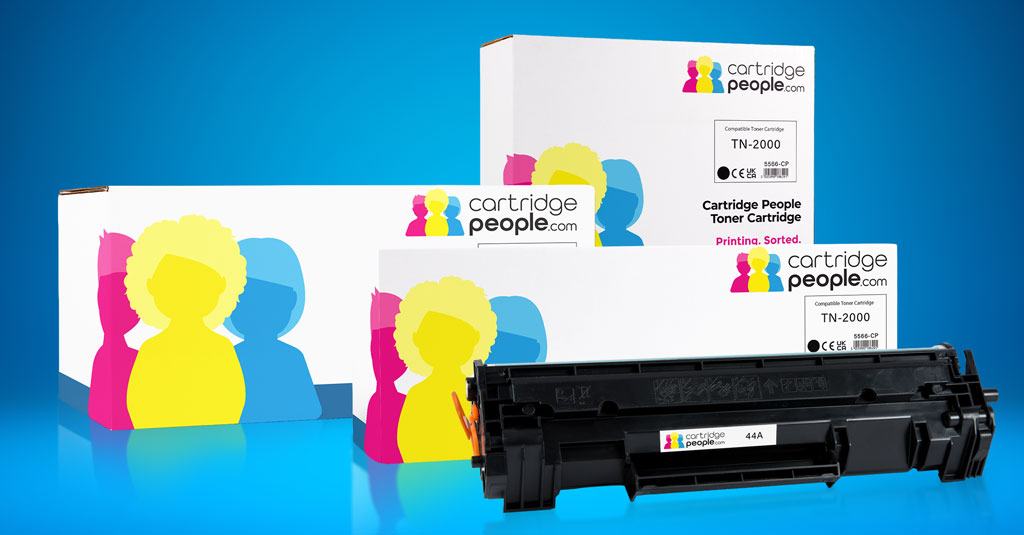
If your printer accepts separate drum units, it’s worth buying your printer drums at the same time as buying your toner cartridges in order to be prepared. Here at Cartridge People, we stock an extensive range of affordable printer drum units.




Printer Drum FAQs
To Sum Up
You should replace the imaging unit when warnings appear, the page yield has been reached or print defects persist after replacing toner. Don’t forget to check your printer manual for model-specific drum life and reset steps.
About The Author
